- Connect your AI (one time).
- Tell Confidant about you (one time, out loud).
- Write a video: say your idea, get a script.
- Record: tap the red button and read. The words follow your voice.
- Edit and post, then mark it posted in My videos.
01Get started
Three steps. You only do them once.
- Sign in (top right). Your work is saved to your account.
- Tap Connect AI and paste your AI key. About 2 minutes.
- Tap Start and answer a few questions out loud. Now Confidant knows you.
- Tap Write a video. Say your idea like you'd tell a friend.
- Tap Record this video. The words scroll while you talk.
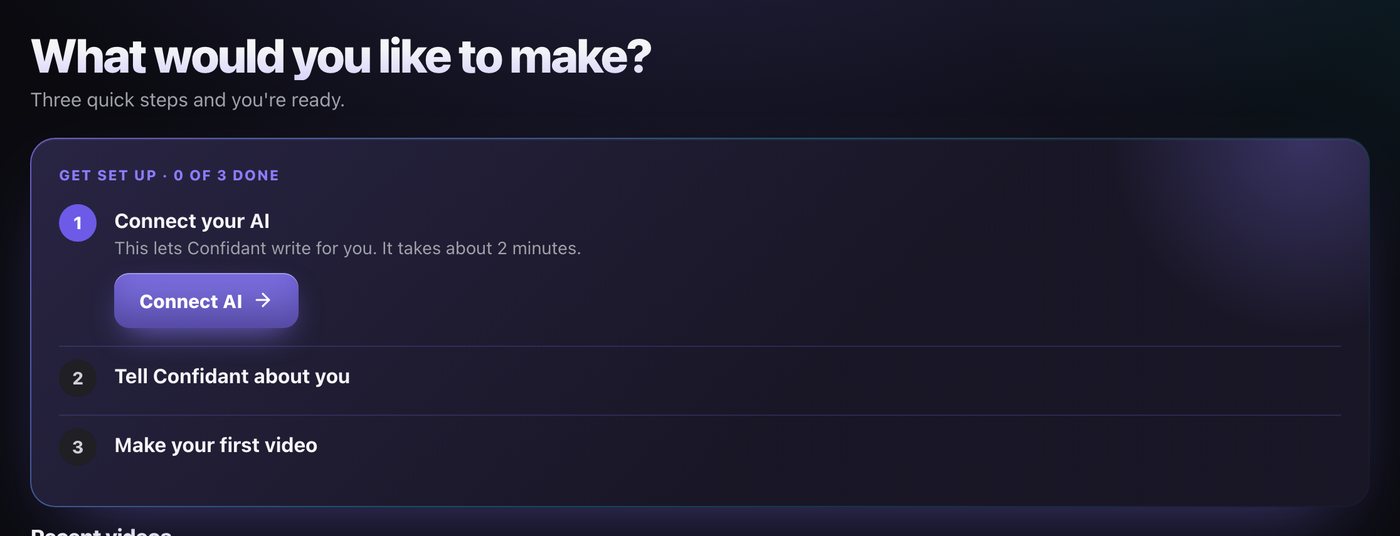
When you open Confidant, Home shows a short list called Get set up. Do the steps in order. Only the step you are on shows its button.
Tap Connect AI. It takes about 2 minutes. See Connect your AI key.
Tap Start and answer questions out loud. This builds your Brain, so your scripts sound like you. See The Brain interview.
Tap Write a video, say your idea, and get a script. Then record it.
Watch how: setup videos
Five short videos, no sound. Each one shows one step.
Sign in
Signing in keeps your work in your account. Your Brain follows you to every device: laptop, desktop, or phone.
- Tap the round button at the top right. Then tap Sign in.
- New? Tap Create an account. Type your email, a password (8 or more letters), and your mobile phone (for account recovery). Check I agree to the Terms & Privacy Policy. Tap Create account.
- Check your email to confirm. Then sign in with your email and password.
Use Google instead: tap Continue with Google. A small Google window opens on the page. It shows the Confidant name and logo, so you know it's us. If the window doesn't open, tap Google window didn't open? Tap here.
Connect your AI key
Confidant writes with your own AI account. You pay the AI company directly. A key is like a password that lets Confidant use your AI account.
- Tap Connect AI on Home.
- Confidant suggests Claude for the best results and asks if you have it. No Claude yet? Tap No, not yet to get our guest pass and try Claude Pro free for a week. (Claude Pro is for chatting and Claude Code. Confidant's API key is paid separately, usually pennies a script.)
- Pick an AI company. Claude (Anthropic) writes the best scripts. Google Gemini and Groq have free plans. (Groq with a q is not Grok, the X chatbot.) Tap More AI choices to see the rest. Then tap Continue →.
- Tap 🔗 Open … key settings →. Make a key on their site and copy it. Come back and tap I have my key →.
- Paste the key. Tap Connect. Confidant checks it. You see "… is connected. You're all set."
- Confidant asks if you use Claude Code (or Codex if you picked OpenAI). Tap Yes, I use it, No, help me set it up, or Skip, keep it simple. See Set up Claude Code.
- Using Claude? It also asks if you have Storyblocks. If you do, it shows you how to add it to Claude. If not, tap No, skip.
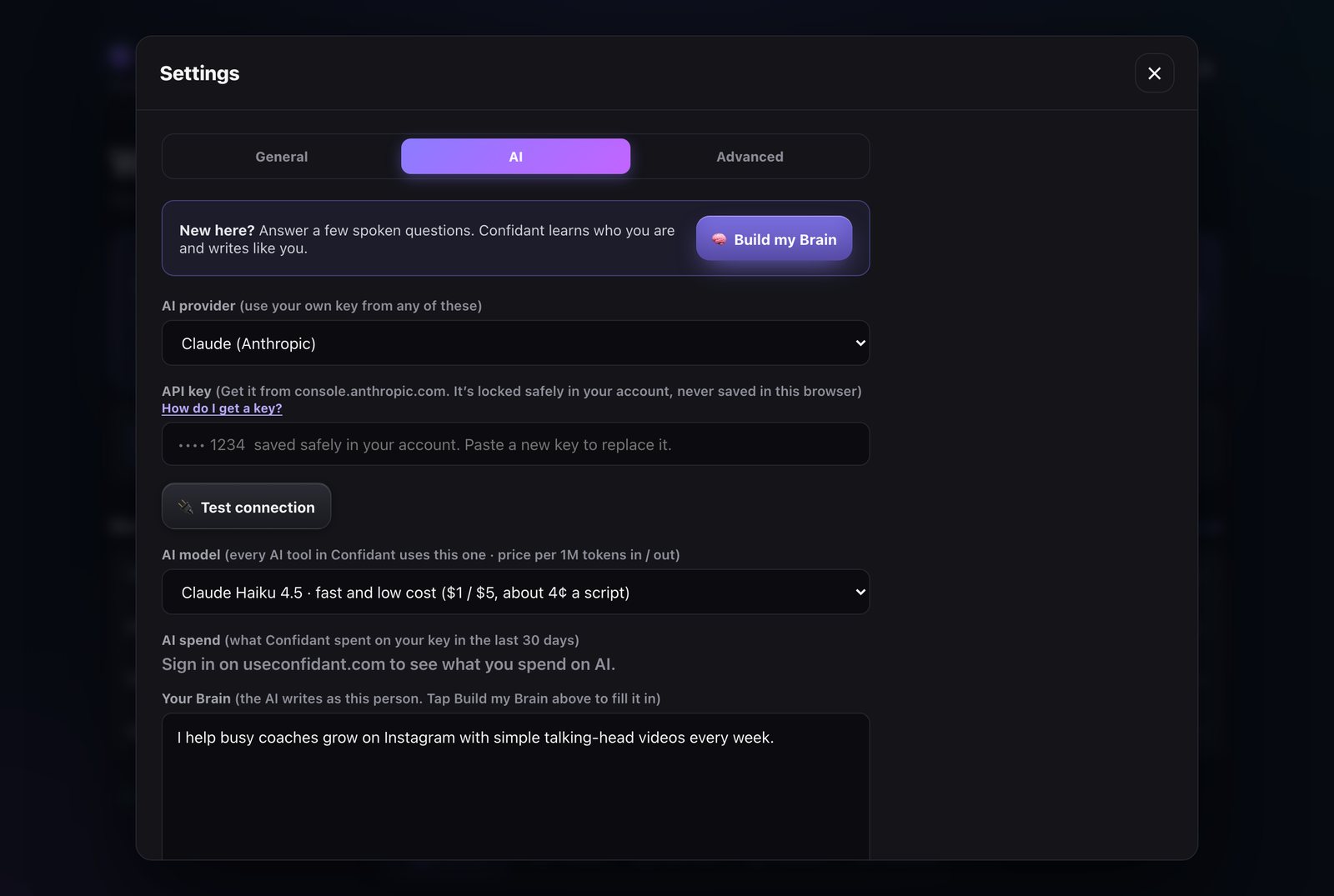
You can also do this in Settings → AI: pick the AI provider, paste your API key, and tap 🔌 Test connection. Your key is saved safely in your account.
Choices: Claude (Anthropic), OpenAI (GPT), Google Gemini, xAI (Grok), DeepSeek, Groq, OpenRouter, and Mistral.
Add the Chrome extension (on a computer)
On a computer with Chrome, right after the three setup steps, Home shows Add the Chrome extension. It's free. Tap Not now to hide it.
- Tap Set it up and follow the steps to add it to Chrome.
- Use it on your own videos first. Open your own profile, tap ⇅ Sort this profile, then ✓ Pick the top 5, then 📝 Get the words.
- Confidant matches each video to its numbers and shows what works for you in My Brain → 📊 What's working.
AI key problems
AI plans: which model does what
Confidant does many AI jobs. Some need a strong model. Some just need a fast one. A plan picks the right model for each job.
- Open Settings → AI.
- Find Which model does what.
- Pick a plan:
- Best quality: the top model for writing, strong models elsewhere. Costs the most.
- Balanced (recommended): strong writing for a fair price. Fast models for small jobs.
- Lowest cost: the cheapest model for everything.
- One model for everything: every job uses the AI model you picked above it.
- Tap Save settings.
Change one job: under your plan you see six jobs: Writing scripts and posts, Long scripts, Updating your Brain, Chat and interviews, Checking and fixing, and Quick ideas and lists. Each one shows Recommended: (a model). Pick any other model in its list to use that one instead. (The list hides when you pick One model for everything.)
What it costs
You pay your AI company. Confidant adds no fee. Prices are close guesses, because AI companies charge by the word piece (a "token").
| Model | Per script | Per 100 scripts | Best for |
|---|---|---|---|
| Claude (Anthropic) · price per 1 million tokens in / out | |||
| Claude Opus 5.5 recommended $4 / $20 | about 20¢ | about $20 | Everything you will post. |
| Claude Fable 5.1 $10 / $50 | about 50¢ | about $50 | The most capable model. Rarely needed for short scripts. |
| Claude Sonnet 5.5 $2 / $10 | about 10¢ | about $10 | A strong middle choice when you write a lot. |
| Claude Haiku 4.5 $1 / $5 | about 4¢ | about $4 | Fast drafts. |
| Claude Haiku 5.5 $0.10 / $0.50 budget pick | about half a cent | about 50¢ | Lowest cost by far. |
| Other providers | |||
| OpenAI, Google Gemini, DeepSeek, Groq, Mistral, xAI, OpenRouter | under 1¢ to a few cents | varies | Works if you already pay one of them. Scripts are best on Claude. |
| Free to start Google Gemini · Groq · OpenRouter (models marked FREE) · Mistral | $0 | $0 | Try Confidant with no card. Each has a daily limit. On Gemini's free plan, Google may use what you type to improve its AI. |
- Settings → AI → AI spend shows what Confidant spent on your key in the last 30 days.
- Confidant warns you when a day's spending passes $2, $5, $10, $25, and $50.
- Set a monthly limit with your AI company too. Make a key just for Confidant, so you can see what it uses.
Home and the tabs
Five tabs sit at the bottom: Home, Create, My videos, Results, and My Brain.
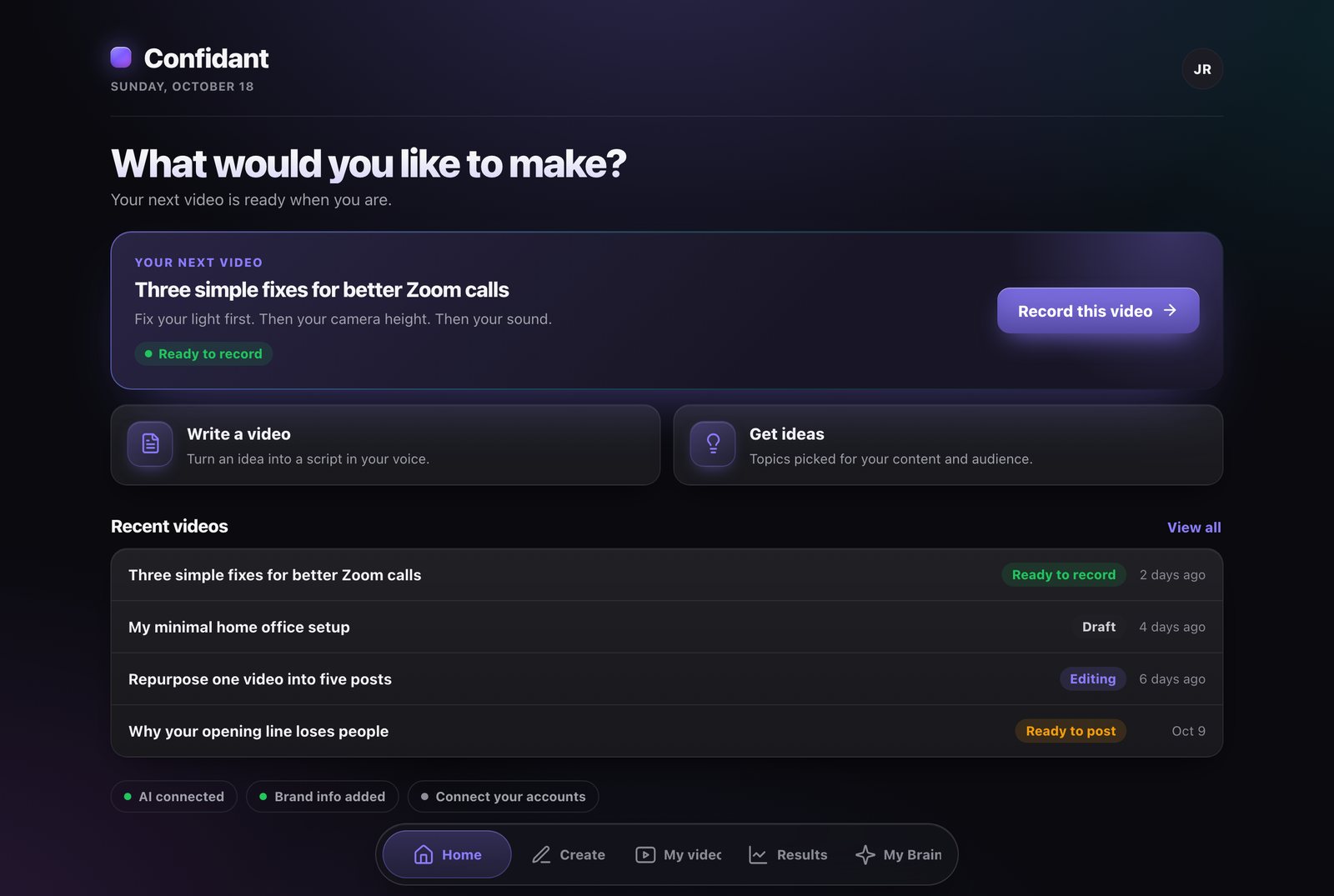
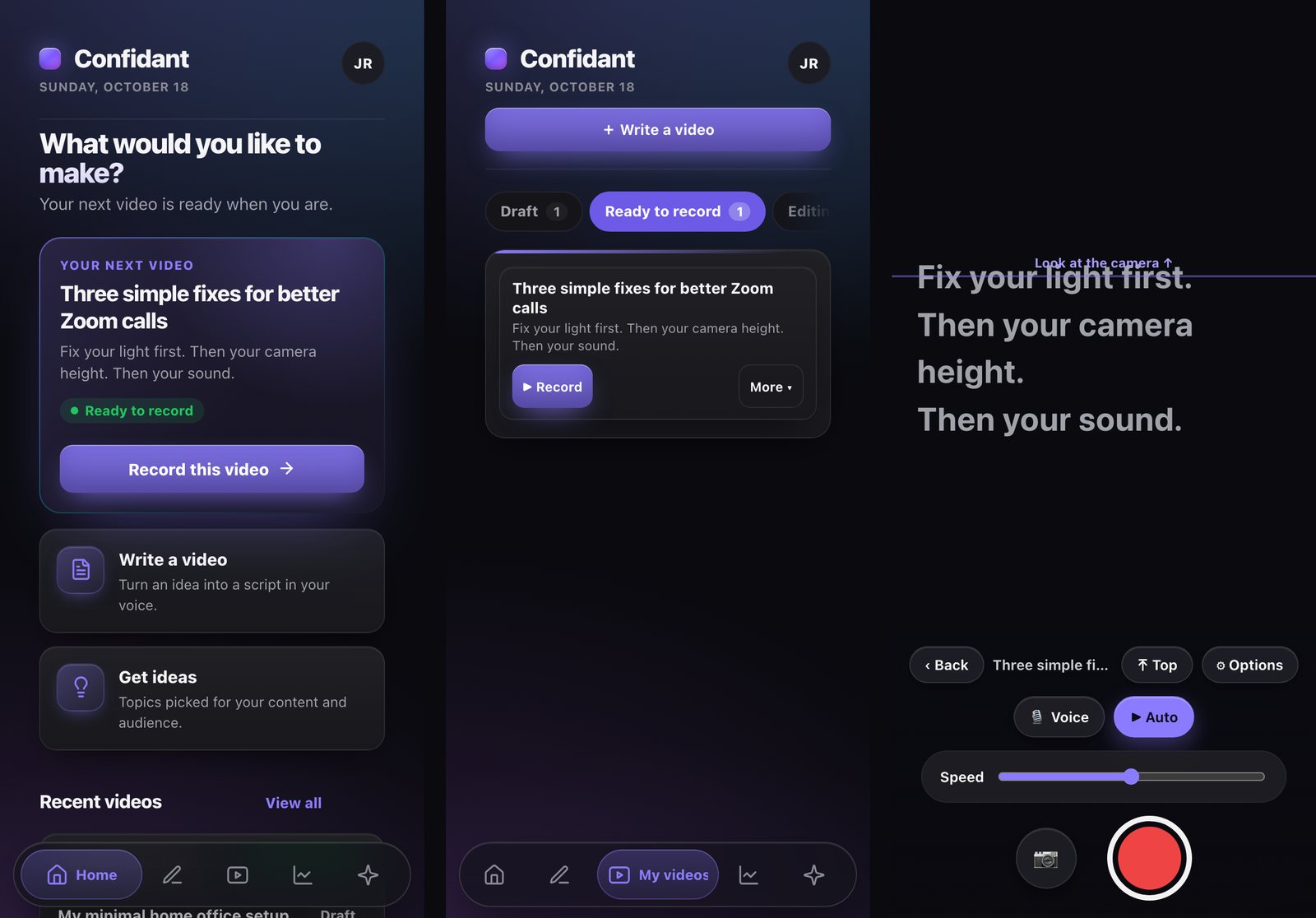
The big card shows your next step. Its button changes: Continue writing, Start meeting, Record this video, Edit this video, Write the script, or Get ideas when you're all caught up.
Shortcuts: Write a video, Video series, Winning ad builder, Write a week of scripts, Carousels, and Make a lead magnet. Tap See all ways to create → for the rest.
Under that: your Recent videos, and a row that shows if your AI, brand info, and accounts are set up.
On your phone
- Everything works in your phone's browser. Nothing to download.
- Want it like an app? In Safari, tap Share → Add to Home Screen. In Chrome, tap ⋮ → Add to Home screen.
- In My videos, the steps become tabs at the top with a count on each.
02Your Brain
What Confidant knows about you. The more real detail, the more your scripts sound like you.
Your Brain holds who you are, who you help, how you talk, your beliefs, your stories, your proof, your content topics, and what's going on in your business. Tap the My Brain tab to see it.
At the top are four tabs: What it knows, 📊 What's working, 🗺️ Map, and 💬 Chat. Under them is a row of tools: 🎬 Weekly session 🔎 Research 🕵️ Competitors 📰 In the news 💭 Tell my studio 📞 Add a call 📎 Add documents 📚 Resources.
Change what it knows
- In What it knows, tap ✏️ on any part. Change the words, then tap Save to Brain.
- Tell my studio: tap 💭 Tell my studio. Say or type a win, a client moment, a lesson, or an article you read. Tap 🧠 Add to my Brain.
- Weekly session: tap 🎬 Weekly session. Pick 20, 30, or 60 minutes and tap Start the session →. It asks about your week and finds new audience problems.
Your Brain is safe
- Your Brain lives in your account, not on one device. Sign in to see it.
- New things are only added. Nothing is wiped.
- Every save is kept. Tap 🕘 Brain history to see past versions. Add back adds an old version in. Restore goes back to exactly that version. Your Brain right now stays in the list too.
The Brain interview
For: building your Brain fast, by talking. Use it first, right after you connect your AI.
- Tap Start on Home (step 2), or 🧠 Tell Confidant about you on an empty Brain, or 🧠 Build my Brain in Settings → AI.
- A voice reads each question. Then it listens. Just talk, like you're chatting over coffee. You can type too.
- Tap Next → to go on, Skip to skip one, or ‹ Back to go back. There are 14 questions.
- On the last one, you can tap 🔥 Dig deeper → for more questions. Or tap ✨ Build my Brain to finish.
- Read your new Brain. Tap Save.
- Your answers save as you go. Close it and come back later. They're still there.
- Pick a voice with 🔊 Interviewer voice. Turn it off with 🔊 Voice on. Hear a question again with 🔊 Replay.
- The free voices (Heart, Bella, Michael, Puck) sound like real people and run in your browser. They download once (about 155 MB). They work best in Chrome or Edge on a computer. If you have an OpenAI key, you can pick an OpenAI voice too.
Chat with your Brain
For: asking your creative director a question, or telling it something new.
- Tap My Brain, then 💬 Chat.
- Type, or tap 🎙️ Speak. Tap Ask →.
- Want it to remember something? Type it in the box and tap 🧠 Save to Brain.
Add documents
For: things you already wrote down. Your offer, sales page, course outline, client wins, or notes.
- Tap My Brain, then 📎 Add documents.
- Tap Pick files, or drop them in. PDF, Word (.docx), PowerPoint (.pptx), text, Markdown or CSV. Up to 5 at a time.
- Tap 🔎 Read them. You see what we learned from each file.
- Uncheck anything that's wrong. Tap 🧠 Add to my Brain.
- It only adds. Nothing in your Brain gets replaced.
- PDFs are read by your AI. Claude, OpenAI and Gemini can read them. With another AI, copy the text out of the PDF and use Tell my studio.
- Old Word files (.doc) and Pages files: save them as PDF or .docx first.
03Weekly meeting
About 10 minutes a week with your creative director.
For: a short talk about your numbers, your videos, and your business. You leave with a to-do list and new video ideas.
- Tap Start meeting on Home when it's time. Or tap My Brain, then 🗓️ Weekly meeting.
- It looks at your numbers and videos and shows Today's agenda. Tap Start meeting →.
- Talk or type. Tap 🎙️ Speak to talk, then Send →. Replies are read out loud (turn off Read replies out loud if you like).
- Tap Wrap up. You see a summary, next week's focus, and your action items.
- Check the video ideas you like. Tap Save meeting. Checked ideas go to My videos as drafts.
Calls
For: putting what clients say on sales calls into your Brain. Their real words make better scripts.
- Tap My Brain, then 📞 Add a call.
- Automatic: under 🔌 Connect any note taker, pick the one you use. Follow its steps. See Connect your note taker.
- By hand: pick what it is (like Sales call). Paste the notes, or tap 📄 Upload transcript or 🎧 Upload call audio. Tap 🧠 Add to my Brain.
Connect your note taker
For: getting every call and voice note into your Brain on its own, every day.
Plaud, Zoom, Granola, Fireflies, Otter, Read.ai and more: let Claude send them.
- In Claude, open Settings, then Connectors. Add your note taker (like Plaud).
- In Confidant, tap ⧉ Copy my Claude link. In Claude, tap Add custom connector. Name it Confidant and paste the link.
- Tap ⧉ Copy the daily task. Paste it into a new Claude scheduled task. Now Claude sends each day's calls at 7 pm.
Fathom, tl;dv, Circleback or Jamie: copy your webhook link and paste it in that app's webhook settings. Each call comes in right away.
Using Zapier? Make a Zap with your note taker as the trigger. Add Webhooks by Zapier, then POST, with your webhook link. Send fields named title, date, summary and transcript.
GoHighLevel calls
For: learning from your dials and discovery calls in GoHighLevel.
- In GoHighLevel, open your sub-account. Go to Settings, then Private Integrations. Don't see it? Turn it on in Labs.
- Tap Create new Integration. Name it Confidant. Pick View Conversations and View Conversation Messages. For form answers too, add View Forms and View Surveys. Copy the key.
- In Confidant, pick GoHighLevel under Connect any note taker. Paste the key and your Location ID (Settings, then Business Profile). Tap 🔗 Connect GoHighLevel.
Every hour, Confidant reads your new recorded calls and adds them to your Brain. It skips short dials, voicemails and missed calls. It only reads. It never calls, texts or changes anything in GoHighLevel.
Form and booking answers
For: learning from what people type into your forms. Answers like "What do you want help with?" are your audience's own words.
- In Confidant, pick Calendly, Typeform or Tally under Connect any note taker.
- Follow the steps to make a key in that app. Paste it and tap 🔗 Connect.
Every hour, Confidant reads new answers and adds them to your Brain. It leaves out names, emails and phone numbers. It never changes your forms or bookings.
04Write a video
Three steps: your idea, your script, record.
Tap Write a video on Home or in Create.
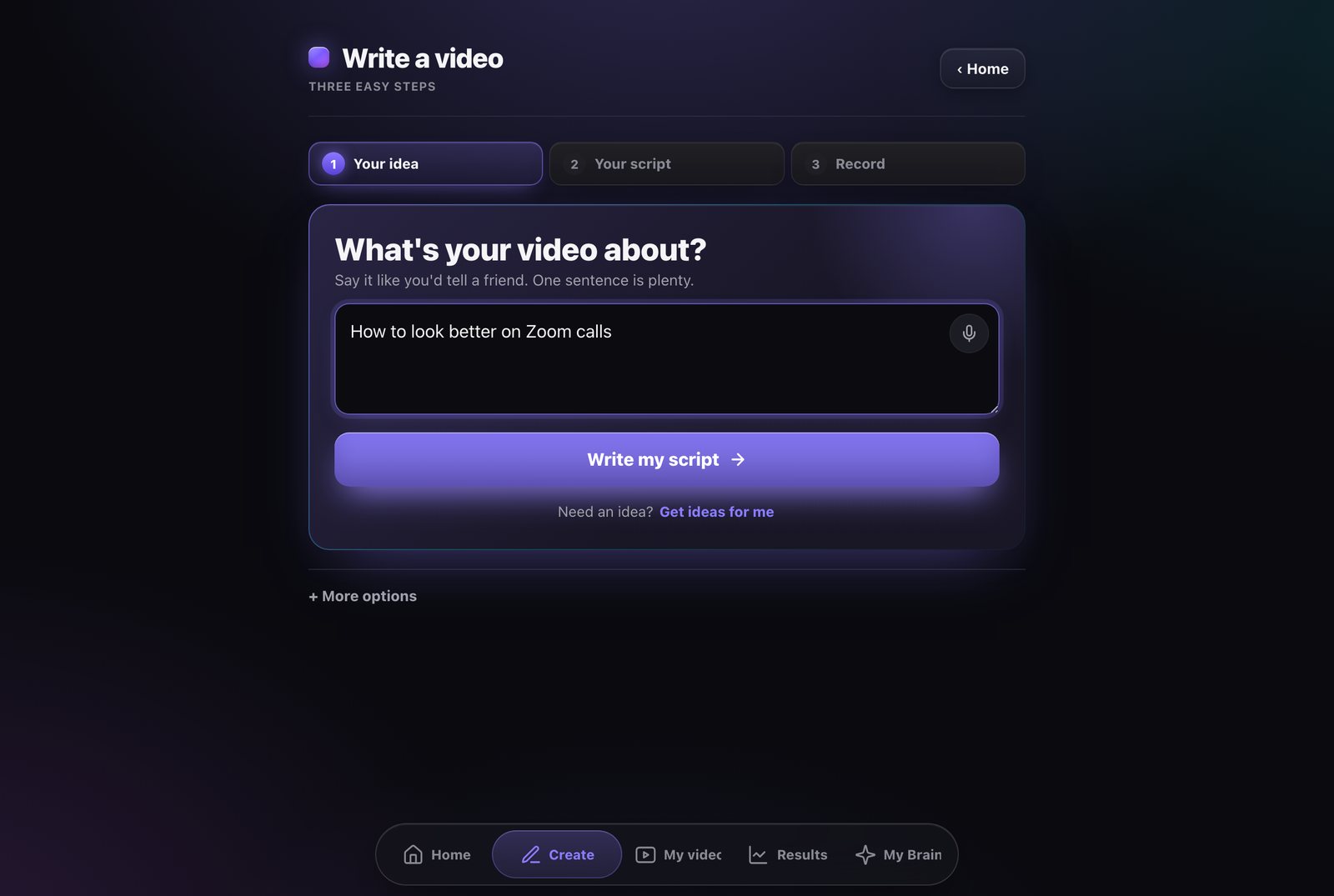
Type what your video is about, or tap the 🎤 mic and say it. One sentence is plenty. Tap Write my script. No idea yet? Tap Get ideas for me.
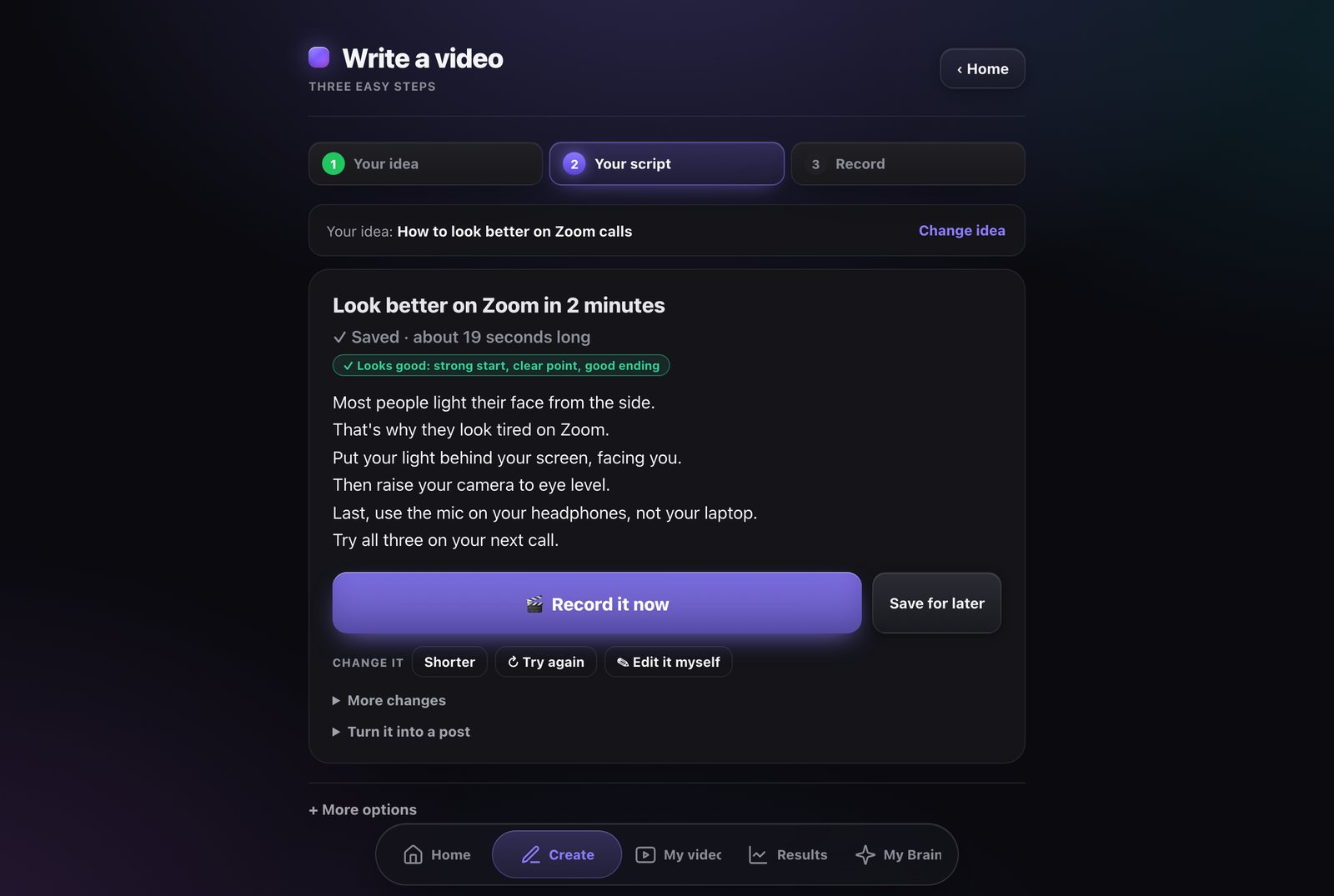
Your script shows up and is saved right away as a Draft. Change it until it sounds right (see below).
Tap 🎬 Record it now, or Save for later. Saved scripts wait in My videos under Ready to record.
I already have a script
Got a script from your coach, a doc or anywhere else? In Create, tap 📋 I have a script. Paste it, name it if you want, then tap ▶ Record now or Save for later. Your words stay exactly as they are.
Make your script better
- Shorter cuts it down.
- ↻ Try again writes a new one.
- ✎ Edit it myself opens the words so you can type.
- ↶ Undo brings back the last version.
- Tap More changes for Better first line, More like me, and New ending.
- Tap Turn it into a post for an Instagram caption, a Carousel, a YouTube title + description, or a Tweet.
More options
Under step 1, More options has extra tools: pick which brand you're Writing for, 🧩 Build it step by step, 🎬 Plan my videos, 📅 Write a week of scripts, 📣 Write an ad, 💭 Tell my studio, and ⚙︎ AI settings.
Plan my videos makes a plan from your Brain: your main topics, then ideas with ✍️ Write this one on each.
Other ways to start
- Templates (Create → Find ideas): proven video shapes, like Myth-Bust, Tier list, or Story → Lesson. Tap ✍️ Write one on any card. Make your own with + Make my own template: paste a script that worked, or say the shape in your own words. See Your own templates.
- Blank page (Create → Make videos): write or paste your own script. Tap Save, or ✓ Save & Record. Stuck? Tap ✨ Write it for me.
Your own templates
- Go to Create, then 📐 Templates. Tap + Make my own template.
- Give it a name. Paste the words of a video that did well, or say the shape in your own words.
- Tap Save my template. Confidant keeps the shape, not the words.
- Tap ✍️ Write one on it any time. You get a new script in that shape, in your voice.
05Get ideas
Video ideas made for your audience.
- Tap Get ideas in Create or on Home. Or tap Get ideas for me in Write a video.
- Want ideas on one theme? Type it in the idea box first.
- On any idea, tap ✍️ Write this one to get a script. Or tap Save for later to keep it in My videos as a Draft.
06My videos
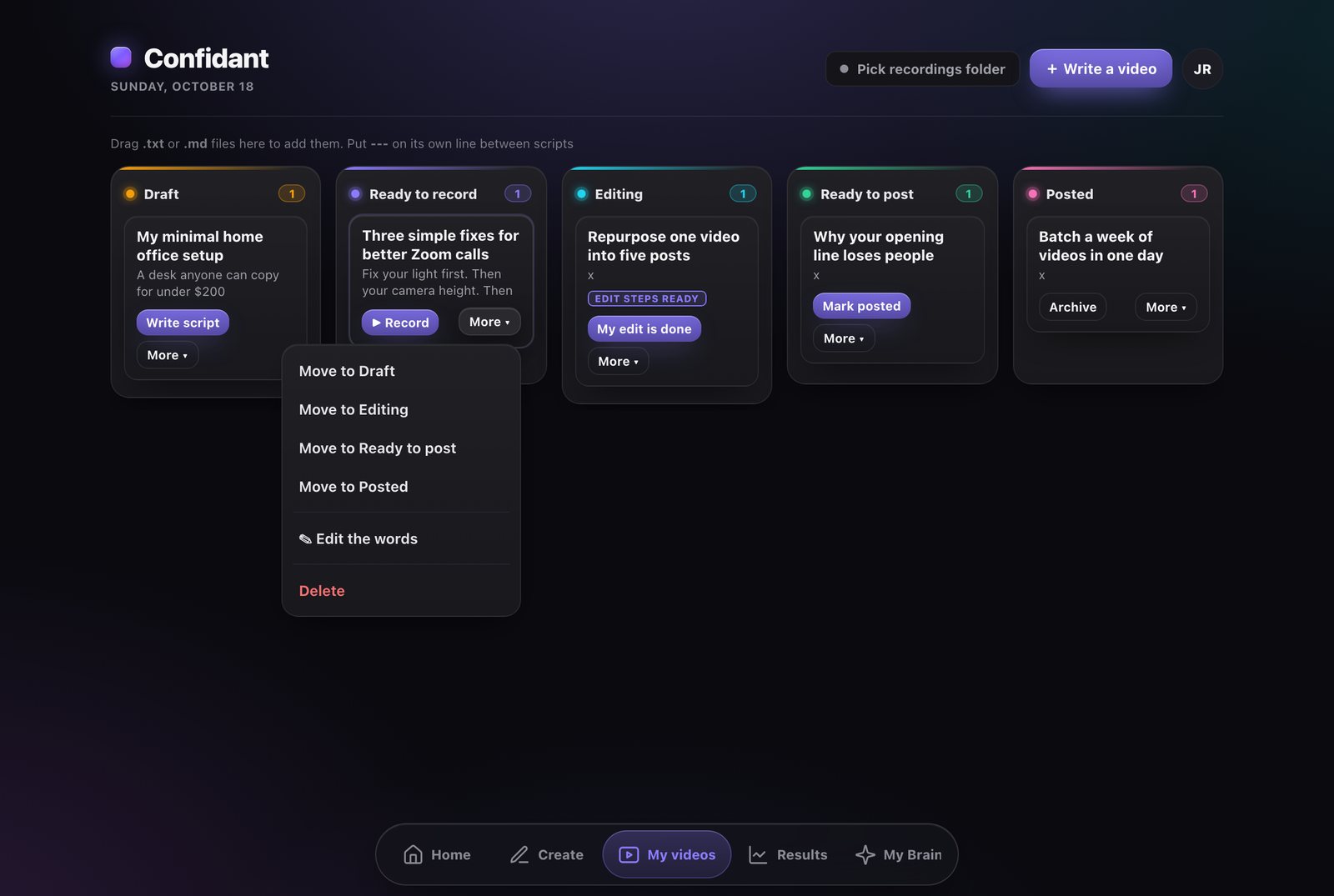
Every video is a card. It moves through five steps.
The five steps
Each card has one big button for the next step:
- Draft: Write script
- Ready to record: ▶ Record
- Editing: Edit this video, then My edit is done
- Ready to post: Mark posted
- Posted: Archive
Tap More ▾ on a card to move it to any step, ✎ Edit the words, ⧉ Copy the script, add 📊 Numbers and retention, or Delete it. Every move and every delete shows an Undo button.
Add cards with + Add an idea (under Draft) or + Add a posted video (under Posted).
07More ways to write
Write many scripts at once.
Write a week of scripts
For: 5 scripts from your Brain, ready to record.
- Open Write a video. Type a theme in the idea box if you want one.
- Under More options, tap 📅 Write a week of scripts. (It's also a tile in Create and a shortcut on Home.)
- Wait while it comes up with ideas, writes, and checks each script.
- The scripts land in My videos, under Ready to record.
Bulk ideas and scripts
For: lots of ideas at once. Keep the best, then write them all.
- Create → Bulk ideas and scripts.
- Pick how many ideas: 10, 20, or 30. Add a theme if you want.
- Tap 💡 Get my ideas. Uncheck the ones you don't want.
- Tap ✍️ Write the scripts to write them all. Or tap 💾 Save as drafts to keep just the ideas.
Video series
For: a run of connected videos. Each one sends people to the next.
- Create → Video series.
- Type what the series is about (or tap 💡 Ideas). Pick 3, 5, or 7 videos. Pick Instagram, TikTok, or YouTube Shorts.
- Tap ✨ Write my series.
- Tap 📥 Add all … to My videos. Each card is marked Part 1, Part 2, and so on.
Batch recording day
For: recording many videos in one sitting.
- Create → Plan → Batch recording day.
- Pick a day and time for your weekly interview, batch recording, and editing. Tap 📅 Add all three to my calendar.
- Ready now? Tap 🎬 Start a batch session now →. Go through the warm-up list, then tap I'm ready. Start the first one ▶.
- After each video, tap Next one ▶. Need a break? Tap Pause and finish later.
08Long YouTube video
A full script with chapters, 5 to 15 minutes.
- Create → Long YouTube video.
- Idea: type your topic. Pick the video type (talking head, slides, tutorial, or mixed) and the length. Paste your steps if you have them. Tap Next: pick your angle →.
- Angle: pick one, and fix the title if you like. Tap Next: outline →.
- Outline: check it. Tap ✍️ Write the script.
- Script: you get each chapter with what to show on screen. Tap 📥 Save to Scripts.
YouTube thumbnail and description
For: getting the click, then getting found. Works for long videos and Shorts.
- Create → YouTube thumbnail and description.
- Pick one of your videos. Or type what the video is about.
- Tap ✨ Write my title, description and tags. Pick a title. Fix the description if you like.
- Tap ⧉ Copy title, ⧉ Copy description and ⧉ Copy tags, and paste each one in YouTube Studio.
- For the thumbnail: tap one of the big-word ideas or type your own. Tap 📷 Add your photo. Pick a layout and a word color.
- Tap ⬇ Download thumbnail. Upload it in YouTube Studio → Details → Thumbnail.
- Long videos get chapters in the description. The times are a guess from your script, so check them after you upload.
- Put *stars* around a word to color it, like STOP *POSTING* DAILY.
- The thumbnail uses your own photo. Confidant never makes fake people. Your photo stays on this device.
- What you write is saved on that video, so you can come back to it.
09Sales video (VSL)
A long video that sells your offer or gets people ready for a call.
Which one? They all sell. The difference is when people see it. Before they book: a sales VSL. After they book: a pre-call video. Booking calls with you? Start with the pre-call video.
- Create → Sales video (VSL).
- Type: pick Pre-call video, Long sales VSL, or Short VSL, and how long. Pick how it looks: you on camera, slides with your voice, or both. Tap Next: your answers →.
- Info: tap 🎙️ Interview me (best) or ✨ Fill from my Brain.
- Outline: check it. Tap ✍️ Write the script.
- Script: tap ✅ Check it, then 📥 Save to Scripts.
Interview me
For: filling in your sales video without typing a lot.
- Tap 🎙️ Interview me.
- Your Brain fills in what it already knows first. It tells you how many it knew.
- Then it asks you the rest, one question at a time. It reads each one out loud.
- Talk (tap 🎙️ Talk) or type. Tap Next →. Tap Skip to skip one.
- On the last question, tap Done ✓.
10Record
The words scroll while you talk. Just look at the camera and read.
- On a card in Ready to record, tap ▶ Record. Or tap 🎬 Record it now right after writing.
- Pick how the words move:
- 🎙️ Voice Scroll: the words follow your voice. Stop talking and they wait.
- ▶︎ Auto: the words move at a steady speed. Use the Speed slider.
- Tap the red record button. It turns the camera on for you. Then talk.
- Tap the red button again to stop.
- Tap 💾 Save to device. Or tap ↺ New take to try again.
- Happy with it? Tap Move to Editing (or ✓ Mark Recorded in the toolbar).
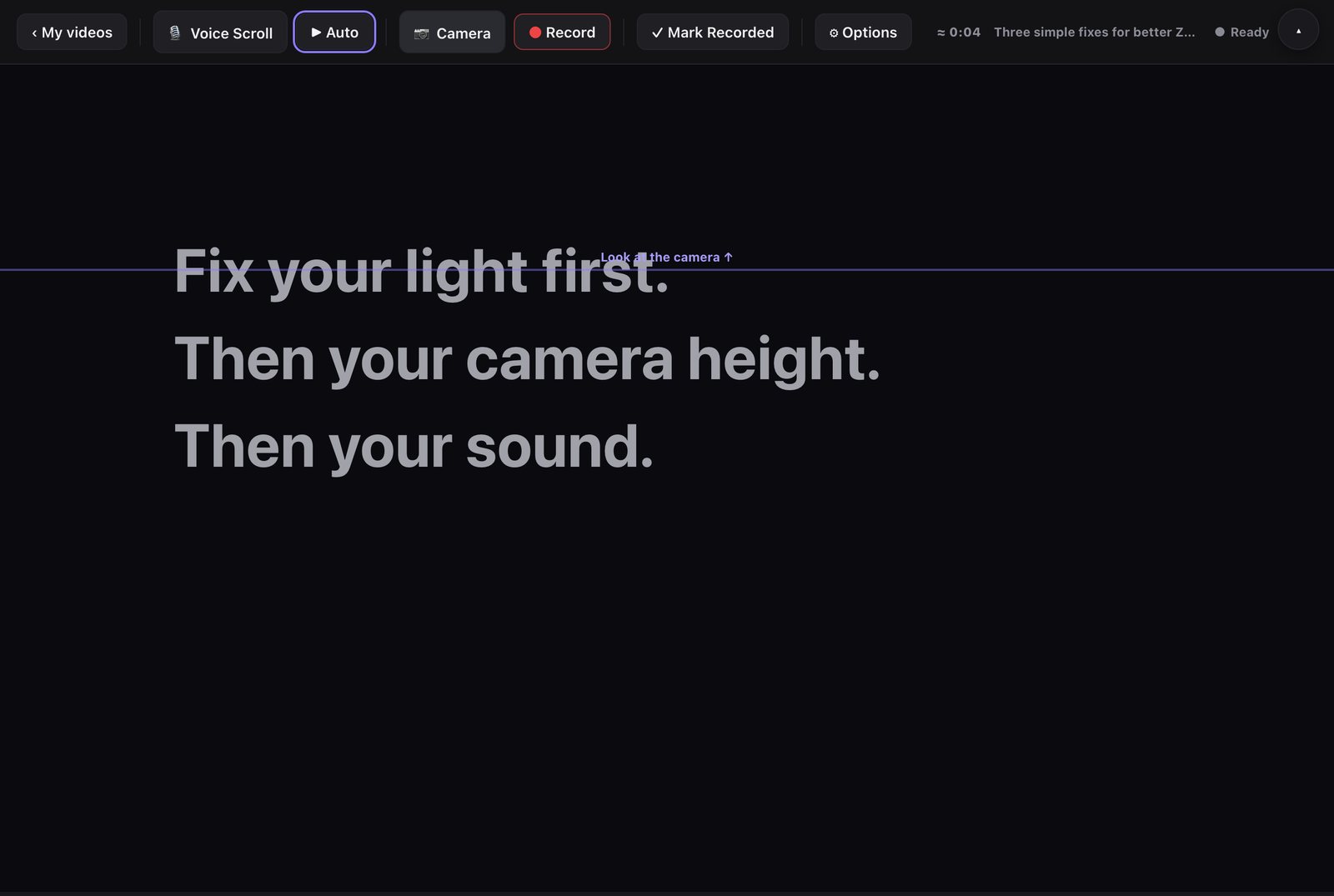
⚙ Options has the extras: text size, speed, colors, ⏱ 3, 2, 1 countdown, 📐 Words by camera, ▦ Grid lines, 🖼 Framing guide, ⇋ Mirror (for teleprompter glass), 👁 Eyeline, 🎥 HD video, and 🎬 Clip by clip (read a part, stop, then read the next).
Review your take: after Mark Recorded, you see your length, pace, filler words, and tips. Tap Next ▶ to go on, or ↺ Re-record.
Recording problems
11Voice Scroll
The words follow your voice, hands free.
Tap 🎙️ Voice Scroll (on a phone, 🎙 Voice). Then tap record. If you skip ahead or read a part again, it finds your place. If the mic drops for a second, it picks back up.
Talk to move the words
- "go back" or "next line": move one line.
- "back two lines": move more than one.
- "back to the top" or "start over": go to the start.
- "pause", then "keep going": stop and start.
- "find my place": it finds where you are. (Needs your AI.)
- "take me to the part about…": jump to a part. (Needs your AI.)
Voice Scroll problems
Recording on iPhone
- Use Safari. Allow the camera and mic when asked.
- On iPhone, Voice Scroll uses Apple's own speech tool. It is light, so the page stays open.
- It needs internet. Without it, the words move while you talk.
- If your iPhone needs the mic for the video, the words move while you talk instead.
- If Voice Scroll stops, open iPhone Settings and allow Microphone and Speech Recognition for Safari.
- Keep Confidant on screen while you record.
- To save, see Save your take.
Recording on Android
- Use Chrome. Allow the camera and mic when asked.
- Voice Scroll listens right in your browser, so it works while you record.
- The first time, you see "Getting Voice Scroll ready". Wait a moment. Recording starts by itself.
- If it can't start, the words still move while you talk and wait when you stop. A short message tells you.
- Want it like an app? Tap 📌 Add to Home Screen when Chrome offers it.
12Backed-up takes
If your phone closes the app mid-take, your video is still safe.
When you're signed in on a phone, each take backs up to your account while you record. Backups are kept for 7 days. It uses about 30 MB of data per minute.
- Tap the round button (top right) → Settings.
- In the General tab, find Look and recording.
- Under Take backup, tap ☁ My backed-up takes.
- On a take, tap ⬇ Get to download it, ⧉ Link to copy a link (works on any device for 24 hours), or Delete.
- A take marked cut off was stopped early. You still get what was recorded.
- To turn backups on or off, use the box Back up each take to my account while I record.
- Under the take, you see "☁ Backing up…" and then "☁ Backed up for 7 days".
Save your take
- Tap 💾 Save to device after you stop.
- On iPhone: if the backup is done, Save downloads the backed-up copy. It goes to your Files app, in Downloads. Tap Download if it asks. Then tap ✓ Done.
- If the backup isn't done yet, Save opens the phone's copy in a new tab. Your Confidant page stays open behind it.
- Want it in Photos? Open the Files app, find the video, tap Share, then Save Video.
- If the app closed before you saved, you see 💾 Recovered take next time. Tap Save.
13Edit
Two ways to edit. Simple works on your phone with no setup. Claude Code (or Codex if you use ChatGPT) does the whole edit for you.
On a card in Editing, tap Edit this video. Pick a tab at the top: 📱 Simple or 🤖 Claude Code. If you use Codex, the tab says Codex.
The simple way (Edits or CapCut)
- Save your clip. After you record, tap 💾 Save. On iPhone it goes to Files or Photos.
- Open a free editing app: Edits (from Instagram) or CapCut. Start a new project and add your clip.
- Add captions. Tap Captions, then Auto captions. Fix any words it got wrong.
- Trim the start and end so it starts right on your first word.
- Add your hook as big text for the first 3 seconds. The Simple tab has a ⧉ Copy button for it.
- Post it. Then tap ✅ My edit is done.
The full auto edit (Claude Code)
Confidant doesn't edit videos itself. Claude Code is an AI tool from Anthropic. With a free editing tool (video-use or HyperFrames), it cuts the pauses and mistakes, adds captions, and saves the final video.
- On a card in Editing, tap Edit this video.
- The first time, copy one editing tool to your computer. Run the line shown in Claude Code.
- Tap 💾 Save on your take to download the clip. Put it in the tool's folder and name it source.mp4. Or drag it into your Claude Code chat.
- Tap ⧉ Copy the prompt. Paste it into Claude Code.
- When your video is done, tap My edit is done. It moves to Ready to post.
- Need the steps again? On the card, tap More ▾ → 🎬 Edit steps again.
- Quick clean-up: in Review your take, tap 🧹 Clean up. It finds silences and mistakes. (Needs an OpenAI key.)
Set up Claude Code
Claude Code is Claude working on your computer. Confidant uses it only for the big jobs: the full auto edit and deep research. Writing, recording and the simple edit work without it.
Right after you connect your AI key, Confidant asks if you use Claude Code (or Codex, if you use OpenAI). Change your answer anytime in Settings → Claude Code. Setup takes about 10 minutes:
- Get a paid Claude plan. Claude Pro (about $20 a month) is enough to start. A free account won't work. This is separate from your API key.
- Get the Claude app for your computer (Mac or Windows) at claude.ai/download. Open it and sign in.
- On Windows only: install Git for Windows (click Next on every screen). Then close and reopen the Claude app.
- Open the Code tab at the top of the Claude app. Make a folder called Confidant in Documents and pick it.
- Test it. Paste the test message from the setup window and press Enter. If Claude answers, you're set up.
Use Codex instead (if you use ChatGPT)
Codex is ChatGPT working on your computer. It lives in the ChatGPT app and does the same big jobs. If you connected an OpenAI key, Confidant asks about Codex instead of Claude Code. You can switch anytime in Settings. Setup takes about 10 minutes:
- Check your ChatGPT plan. Codex comes with every ChatGPT plan, even free, but free runs out fast. For editing, ChatGPT Plus (about $20 a month) is a good start. This is separate from your API key.
- Get the ChatGPT app for your computer (Mac or Windows) at chatgpt.com/download. Open it and sign in.
- Pick a folder. Make a folder called Confidant in Documents. In the app, choose Open a folder and pick it.
- Switch to Codex and tap New chat.
- Test it. Paste the test message from the setup window and press Enter. If Codex answers, you're set up.
Add Storyblocks to Claude
For: Claude users with a paid Storyblocks plan. Then Claude can find and download Storyblocks clips, music and photos for your videos, right in the chat.
After you connect Claude, Confidant asks if you have Storyblocks. Tap Yes, show me how, or find it later in Settings → Show extra keys → Storyblocks in Claude.
- In Claude, click your name (bottom left), then Settings, then Connectors.
- Click + Add, then Add custom connector. Name it Storyblocks.
- Paste https://mcp.storyblocks.com/mcp in the server URL box. Click Continue.
- Keep Sign in now picked. Click Add, then Connect, and log in to Storyblocks.
- Ask Claude for a few Storyblocks clips. If it shows them, you're done.
Captions
- Captions on your video: the Claude Code edit adds them. Pick a style in Settings → General → 🎨 Video look → Edit style: Bold captions, Subtle captions, or No captions.
- A captions file: in Review your take, tap ⬇︎ Download captions. You get an .srt file. This only works if Voice Scroll was on.
- A post caption: under your script, tap Turn it into a post → Instagram caption.
14Carousels
Swipe posts for Instagram, TikTok, LinkedIn, and YouTube.
Make a carousel
- Create → Carousels.
- Pick where you'll post it. Each place has its own shape and slide count.
- Pick a template. There are 27, like Midnight Essay, Book Page, Big Number, Sticky Notes and Receipt. Each one shows a small picture of how it looks.
- Keep 3-Hook on (see below). Want to pick the kind of first line? Choose one under Hook style for slide 1.
- Type what it's about, or tap 💡 Get ideas. Or turn a video that worked into one with ♻️ Make it a carousel.
- Tap ✨ Make my carousel.
- Tap 📱 Save to phone, ⬇ Download slides, or 📄 PDF for LinkedIn. Tap ⧉ Copy caption for the words.
The 3-Hook method
Instagram shows your carousel again to people who skipped it. The second time, it shows slide 2. The third time, slide 3. So slides 1, 2 and 3 each need to grab people on their own. That's 3 chances to stop the same person.
- Keep 3-Hook picked. It's on unless you change it.
- After it's made, tap ✅ Check my 3 hooks. Each hook gets a score out of 10.
- A weak hook gets a better line. Tap Use this to swap it in.
- Want more choices? Tap slide 1, 2 or 3, then ✨ 3 more hooks. Pick the one you like.
Change any slide
- Tap a slide. Change its words. Put **stars** around a word to color it.
- Under This slide's style: pick a Layout (big number, list, quote, old vs new and more), the Text size, how it Lines up, how Starred words look, and a Background color.
- Like how it looks? Tap Use this style on every slide.
- Add a picture: tap 🖼 Make this image with AI or 📷 Use my photo. Then move and zoom it.
- Made a mistake? Tap ↶ to undo, ↷ to redo. On a computer, Ctrl+Z or ⌘Z works too.
- On a computer, drag a slide to move it.
For the whole carousel, open Color, size, fonts and your name. Pick a color, the size (1:1 square, 3:4 taller or 4:5 tall), a font set, and add your name, @handle and photo.
Make one like a carousel you saved
For: a carousel from another creator that did really well.
- Save it with the Chrome extension. Confidant keeps each slide's words.
- Open Create → Videos I like. The card shows 🎠 Carousel and its slides.
- Tap Make my carousel like this.
You get the same structure, with your topic, your words and your voice. It never copies the other creator's words.
Turn it into a video
For: posting your carousel as a video, with the slides moving.
- Tap a slide, then ▶ Preview motion to see how it moves.
- Tap 🎬 Video cards. Each slide becomes its own short video, about 4 seconds. Post them together as a video carousel.
- Or tap 🎬 One video. All the slides become one video, for a Reel or a TikTok.
Wait a few seconds while it records. The video saves to your downloads.
15Story sequences
Instagram stories that get DMs and sales.
For: a set of stories with a goal, like turning proof into DMs or getting people to grab your freebie.
- Create → Make posts → Story sequences.
- Add your photo at the top first (see below).
- Pick a story plan, like 🤨 The Doubter, 🧠 Quiz Time, or 🎬 Netflix vs Free Gift. Tap ▶ Start.
- Confidant walks you through each photo you need, one at a time. Tap 📸 Take it, ⬆ Pick from my photos, or ✨ Make it with AI. Not ready? Tap Skip for now →.
- You get the words for every story. Change any of them. Tap ↻ Rewrite for a new version.
- Tap 📱 Save to phone or ⬇ Download all.
- Follow How to post it. It tells you exactly what to tap in Instagram, step by step.
- Want to type the words in Instagram yourself? Turn off Put the words on the pictures.
- Post the stories in order, a few minutes apart.
- Have all the photos already? The plan says Ready. Tap ✨ Make it.
Your photo
Add one photo of you at the top of Story sequences. Every AI picture in your stories copies your face from it, so they all look like you.
- At the top, find 📸 Add a photo of you.
- Tap 📷 Take one now or 🖼 Pick from my photos.
- To change it later, tap 📷 Take a new one or 🖼 Pick a different one.
How your stories did
When you save or share a story set, Confidant marks it as posted. The next day it asks how it did.
- Open the story in Instagram and swipe up to see its numbers.
- In Confidant, tap 📊 How did it do? on that story set.
- Add the views on story 1, replies and DMs, sticker taps and link taps. Add what you have. Tap Save numbers.
After 2 story sets have numbers, 🏆 What works for you shows which plans get the most people to write back, and whether AI pictures or real photos do better for you. Your Brain uses it, and new story sets copy what worked.
Save a story set as your plan
Like how one came out? Open it and tap ⭐ Save as my plan. It shows at the top of the plans. New ones keep its shape with fresh words. Tap ✕ on your plan to remove it (you can Undo).
16Ads
An ad that gets you followers and customers.
- Create → Winning ad builder. Or tap 📣 Write an ad in Write a video → More options.
- Pick who you call out.
- Pick lines that keep people watching.
- Pick a style: Start with the pain (recommended), Start with the result, or Start with who they are.
- Pick what viewers should do next, like Follow on Instagram, DM a keyword, or Book a time.
- Tap ✍️ Write the script. Then tap 📥 Save to Scripts.
Winning ads in your niche
For: finding proven ads in your niche to learn from.
- Create → Winning ads in your niche.
- Tap 📋 Copy the winning-ads research prompt. Paste it into Claude Code.
- Results come back to Confidant. Or tap Paste results to add them yourself.
- On any ad, tap ✍️ Write my version.
You also see a report and How your ads are doing. On your best ad, tap ✍️ Write 2 more like this. (This needs your ads connected in Results → Ads.)
17Lead magnets
A free thing you send people who comment or DM.
A good lead magnet fully fixes one small problem. Then it points to your paid offer.
- Create → Make a lead magnet.
- Pick how to start: 🎙️ Interview me (best), 📄 Use my SOP, or just type the problem it fixes and tap ✨ Build my lead magnet.
- Pick one of the 3 options. The first is marked Best fit.
- Set the Comment keyword, the name, and how you ask. Tap ✍️ Write the script for a video that offers it.
- Tap 🧲 Build the free download. Tap ⧉ Copy to copy it.
- Tap 📥 Save to Scripts.
The five cheat-code types
The Safe, Hot, Easy check
Each option shows three checks and how it leads to your offer:
- 🔒 Safe: it doesn't feel like a sales pitch.
- 🔥 Hot: it's useful enough to fully solve the problem.
- 😌 Easy: it's quick to use and simple to understand.
The "What now?" part
Every free download ends with a What now? part. It tells people what they just fixed, names the bigger problem, and shows how your paid offer helps. It ends with a soft next step.
Interview me
- Tap 🎙️ Interview me.
- Answer six questions: who it's for, the problem, how you solve it (walk through your steps), the result, the next step, and your paid offer.
- Confidant picks the best type for how you work and builds it from your own steps.
Use my SOP
An SOP is your written steps for doing something.
- Tap 📄 Use my SOP.
- Paste your steps, checklist, or notes. Or tap 📎 Pick a file.
- Tap ✨ Find the best lead magnet.
Your lead magnets
Create → Your lead magnets shows the ones you made. Tap ↻ Rebuild, 🌐 Page to build a page for it, or 🎬 Video. Pick where the page lives (Website, Notion, or GoHighLevel) in Settings → Advanced → Free download pages.
18Videos I like
Save videos you love. Make your own version.
- Create → Videos I like.
- Paste the video link. Paste its words or caption, or what you liked about it.
- Tap + Add to board.
- Your videos are sorted by creator. Tap a creator to open their videos. Tap again to close.
- Each creator shows how many videos you saved and their best score (like 6.2× their normal). Their best video is first.
- Saved a lot? Type a name or a few words in Find a creator or words.
- Videos you added without a creator are under Other videos.
Find outlier videos
For: finding videos that already worked, so you can make your own version.
- Create → Find outlier videos. Or in Videos I like, tap 🔥 Outliers.
- Every saved video shows its outlier score, like 🔥 6.2× normal. That means 6.2 times the views that creator usually gets.
- Pick 2×, 3×, or 5× or more. 2× is an Outlier, 3× is Strong, 5× is Huge.
- Tap ✨ Write my versions of the top 3. They go to My videos as drafts. Or tap ✨ Model this in my voice on one video.
Model this in my voice
For: making your own version of a video that already worked.
It stays close to the original. It keeps the same steps in the same order, the same kind of opening line, and about the same length. It only changes what has to change: your topic, your stories, your proof, and a few words so it sounds like you. It never uses their stories or results as yours.
- Tap ✨ Model this in my voice. It writes your version and adds it to My videos.
- Want to see it first? Tap See my version first. Then tap 🎬 Produce to add it to Ready to record.
19Creators to learn from
Creators you like. Study what works for them.
- Create → Creators to learn from.
- Type the creator's name and their profile link. Tap + Add.
- To study them, tap My Brain → 🔎 Research → Study the creators I learn from. See Research.
Find smaller creators with outliers
For: finding smaller creators in your niche whose videos blew up, so you can make your own version. Their idea worked without a big audience, so it can work for you too.
- Create → Find smaller creators with outliers. Or in Videos I like → 🔥 Outliers, tap 🔎 Find smaller creators in your niche with outliers.
- Tap ✨ Get search words for my niche. Or type your own and tap + Add.
- Next to a word, tap TikTok, YouTube, Instagram or Facebook. The search opens in a new tab.
- In the Confidant box on that page, tap 🔎 Find creators here. Pick a size, like Up to 100K. Tick the ones you want and tap + Add to my creator list.
- Back in Confidant, tap 👉 Check the next creator. On their profile, tap ⇅ Sort this profile. Confidant saves their size, their normal views and their outliers.
- Tap 🔥 Pick outliers (2×+), then 📝 Save + get the words.
- On that creator in your list, tap ✨ Write my versions. Your versions go to My videos as drafts.
- Your list grows a little every time you search or sort a profile. It stays on your account, so you see it on every device.
- Any profile you sort is added too, unless it's yours.
- Sort the list by 🔥 Best outliers first or 🆕 Not checked yet. Pick a size to hide bigger creators.
- Tap 🗑 to take a creator off your list for good.
20Audience problems
Small problems your viewers have. Each one makes a quick video.
- Create → Audience problems.
- Tap 🔎 Find my audience's problems. Tap + Add on the real ones. Or type one you know and tap + Add.
- On a problem, tap 🧲 to turn it into a free download. Tap 🎬 to make a video for it.
21Research
Feed your Brain what's really happening in your world.
Tap My Brain → 🔎 Research. Pick one: Niche research, Competitors, In the News, or Study the creators I learn from.
- Pick a kind of research.
- Tap the copy button (like 📋 Copy the research prompt).
- Paste it into Claude Code (or Codex). It looks at real posts, ads, pages, and reviews, then writes a report.
- When you're signed in, the report comes back to your Brain by itself. If not, paste it in and tap 🧠 Add to my Brain.
- Competitors: tap 🕵️ Competitors. Type the accounts to track. Tap 🔍 Build my weekly tracker prompt, then ⧉ Copy the prompt.
- Creators: uses your list from Creators to learn from. Add some creators first.
In the news
For: this week's stories in your world, to react to on video.
- Tap My Brain → 📰 In the news.
- Tap 🔍 Build my weekly news prompt, then ⧉ Copy the prompt. Paste it into Claude Code.
- Paste the results back and tap 📥 Add to my News shelf.
- On any story, tap 🟢 Write a reaction script.
22Results
Connect your accounts once. Your numbers come in by themselves.
Tap the Results tab. Pick 📷 Instagram, 📣 Ads, 📺 YouTube, 🎵 TikTok, 📘 Facebook, or 🧩 Extension. Confidant can only read your numbers. It can never post, delete, or change anything.
Get your numbers now with Windsor
For: getting your Instagram, TikTok, YouTube, Facebook Page and ad numbers in today, before the direct connections are ready.
- Tap Results. Open ⚡ Get your numbers now with Windsor and tap Set up.
- Tap the windsor.ai link and make an account.
- In Windsor, connect your Instagram, TikTok, YouTube, Facebook Page and Facebook Ads.
- Copy your Windsor API key. Or copy the whole query link from Windsor's Data preview page.
- Back in Confidant, paste it in the box and tap Connect.
- Tick the accounts that are yours. Tap Save and get my numbers.
- Your first 30 days of Windsor are free. After that, Windsor has a free plan that keeps your last 30 days of numbers, or paid plans.
- Tap ↻ Sync now any time to get your latest numbers.
- Windsor is a separate company. Our link is an affiliate link: if you sign up through it, we may get a small thank-you from Windsor. It costs you nothing extra.
Add numbers by hand
- In My videos, tap More ▾ on a video.
- Tap 📊 Numbers and retention.
- Paste the post link. For YouTube, tap ⟳ Get numbers and it fills them in. For others, type views, likes, and more.
- Add a screenshot of the retention graph with 📷 Add a retention graph. Tap Save.
As numbers come in, your Brain learns which videos work best. New scripts lean toward what works for you.
"× your normal"
Posted videos show a badge like 2.4× your normal. It compares this video's views to your usual video (the middle of your last posts). 2.4× means it got 2.4 times your usual views. Below your usual, it says below your normal (0.6×).
- It shows once you have at least 3 posted videos with numbers.
- It needs connected accounts (or the extension) and the post linked to the video.
- Numbers you type by hand don't make a badge.
Connect Instagram
- Sign in first (top right).
- Results → 📷 Instagram → 📸 Connect Instagram.
- Log in to Instagram and allow access.
Connect YouTube
Results → 📺 YouTube → Connect YouTube. Log in to Google and allow access. If the login runs out, tap Reconnect YouTube. If you see "YouTube results aren't turned on yet", use Windsor or the extension for now.
Connect TikTok
Results → 🎵 TikTok → Connect TikTok. Log in and allow access. If the login runs out, tap Reconnect TikTok. If you see "TikTok results aren't turned on yet", use Windsor or the extension for now.
Connect Facebook
Results → 📘 Facebook. There is no direct button yet. Connect your Facebook Page through the Windsor box on that page. For Facebook ads, go to Results → 📣 Ads → Connect Meta Ads.
23The Chrome extension
Confidant Stats brings your own numbers and video words into Confidant. It also sorts any profile by what worked and saves the best videos with what they said.
It works in Chrome on Instagram, TikTok, YouTube, and Facebook. It only reads. It never posts, likes, or changes anything. On those sites, a Confidant box sits at the bottom right. Tap – to make it smaller. To move it, drag its top row. Double-click the top row to put it back in the corner.
Install it
- Sign in to Confidant. Go to Results → 🧩 Extension.
- Download the extension and unzip it.
- Open chrome://extensions. Turn on Developer mode (top right).
- Tap Load unpacked and pick the unzipped folder.
- Reload the Confidant page. It connects on its own. You see ✓ Connected.
Update it
- When Results → 🧩 Extension says A new version is ready, download the new version and unzip it.
- In chrome://extensions, find Confidant Stats and tap Remove.
- Tap Load unpacked and pick the new folder.
- Reload the Confidant tab. If Confidant shows "The stats extension was updated", tap Reload.
Your own videos first
For: teaching Confidant what works for you, from your real posts.
- Open your own profile on Instagram, TikTok, YouTube (Videos, Shorts, or Live), or Facebook (Reels or Videos tab). Scroll down a bit so the posts load.
- Tap ⇅ Sort this profile. It says Your profile at the top.
- Tap ✓ Pick the top 5, or tick the ones you want.
- Tap 📝 Get the words.
- The words go on your own video cards in My videos. Each video gets linked, so its numbers count in My Brain → 📊 What's working.
- Want every video at once? Go to Results → 🧩 Extension and tap 📝 Get the words for my videos.
Sort any profile
For: finding another creator's best videos, and learning from what they said.
- Open a profile on Instagram, TikTok, YouTube (Videos, Shorts, or Live), or Facebook (Reels or Videos tab). Scroll down a bit so the posts load.
- Tap ⇅ Sort this profile.
- Sort by Views, Likes, Comments, or Newest.
- Tap ✓ Pick the top 5 or 🔥 Pick outliers (2×+), or tick the ones you want.
- Tap 📝 Save + get the words. Or + Save picks to save just the posts and numbers.
- Each post shows a score like 3.2× normal. That means 3.2 times the views of a usual post on that page.
- The top line says Based on N posts. More posts give a better score.
- The words show up in Create → Videos I like a minute or two later. Your Brain learns the hooks and shapes that work. It never copies their words.
- Tap ✨ Model this in my voice on a saved video to write your own version.
- The profile joins your creator list with its outliers. See Find smaller creators with outliers.
Save one video
- Open a video on Instagram, TikTok, YouTube, or Facebook.
- Tap 📝 Save + get the words. Or + Save to Videos I like for just the post and its numbers.
- Find it in Create → Videos I like.
Carousels too. Save a carousel post the same way. Confidant keeps the words on each slide it can see, up to 20. It never downloads the pictures. Then make one like it.
Learn from my comments
For: teaching your Brain the words, questions, and ideas from comments on your own posts.
- Link your posted videos first: in My videos, add the post link to each Posted video.
- Go to Results → 🧩 Extension.
- Tap 💬 Learn from my comments.
- It reads comments on your 20 newest linked posts.
- It only reads posts that are really yours.
- What people say goes into your Brain as video ideas and their real words.
24Settings
Tap the round button (top right), then Settings. Three tabs.
- Recording audio: Studio is the fullest, most natural voice (best in a quiet room). Clean cuts background noise (noisy rooms).
- Backed-up takes: General → Look and recording → ☁ My backed-up takes. See Backed-up takes.
- Back up my work (in the round button menu) saves your work to a file. Keys are never in a backup, so connect your AI again after you restore.
Languages
Confidant works in 44 languages, like Norwegian, Swedish, Danish, Finnish, Icelandic, German (also Swiss and Austrian), Dutch, Flemish, French (also Canadian), Spanish (Spain or Latin America), Portuguese, Italian, Polish, Arabic, Hebrew, Hindi, Japanese, Korean, Chinese and Welsh. Go to Settings, then General. There are two choices:
- Language for your videos: the AI writes your scripts, captions, carousels and pages in this language, the way a local creator talks. Voice Scroll listens in it, video words come out in it, and the editing and research prompts use it too.
- App language: the buttons and menus. Pick from 12 languages. Anything not translated yet stays in English.
Arabic and Hebrew scripts read right to left. Japanese, Chinese and Thai work with Voice Scroll too. Build my Brain and weekly sessions still ask their questions in English.
25Teams and plans
Plans
Sign in to start 30 days free. No credit card. You always use your own AI key. Have a code? Tap Redeem it. Manage or cancel anytime with Manage billing.
What it really costs
Confidant never sells you AI credits. You use your own accounts, so you only pay for what you use. Here is the full list.
AppSumo plans
- On AppSumo, open Products and click Activate next to Confidant.
- Sign in to Confidant, or make a free account. Use the email you want to keep.
- You see "Your AppSumo plan is on". Open Settings to see your plan and how much you've used.
Every plan has the full AI studio, the teleprompter, Voice Scroll, recording, the Chrome extension, and Brain backup. Every plan uses your own AI key, forever. To get more, upgrade your tier on AppSumo. Questions? Email support@useconfidant.com. We answer within 1 day.
Company Brain (for teams)
For: owners who want to share facts, offers, and script rules with the whole team. Each person still writes in their own voice.
- Tap the round button (top right) → Team. (You see it on a paid plan.)
- Type your organization name. Tap 🏢 Create company brain.
- The team plan is $79 a month for the company brain and your seat, plus $29 a month for each extra person.
27Help and fixes
Tap the 🛟 button in the bottom corner.
It opens Help & Support with two tabs:
- 💬 Ask anything: ask how something works or what to do next. It knows the whole app.
- 🐞 Report a bug: tell us what you were doing and what went wrong. Tap 🐞 Send report.
Want a tour? Tap the round button (top right) → Guided tours. Many screens also have a ? that opens the right part of this guide.
Common fixes
28New names
Some things got simpler names. Here's what changed.
| Old name | New name |
|---|---|
| Board, Pipeline | My videos |
| Dashboard, Analytics | Results |
| AI Writer | Write a video |
| Hook | Opening line |
| Interest peaks | Lines that keep people watching |
| CTA | What viewers should do next |
| Splinters | Audience problems |
| Free downloads | Lead magnets |
| Hitlist | Creators to learn from |
| Idea Bank | Videos I like |
| Make it mine | Model this in my voice |
| Winning Ad | Winning ad builder |
| VSL | Sales video (VSL) |
| Batch Studio | Batch recording day |
| The gear ⚙︎ at the top | Round button (top right) → Settings |